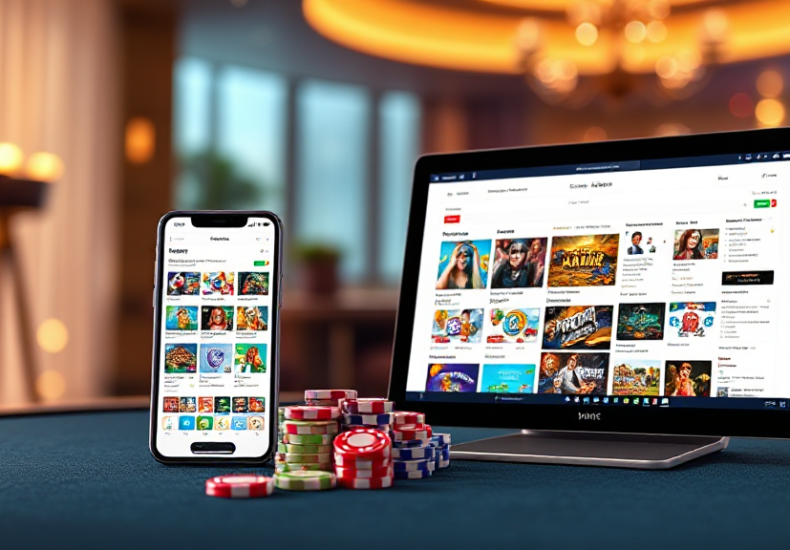
Browsing Rummy App Listings on Phone, Tablet and Desktop: What Changes
Browsing Rummy App Listings on Phone, Tablet and Desktop: What Changes
Open the same directory page on a phone, a tablet, and a laptop and you will see the same information: the same app names, the same categories, the same short descriptions, the same links. What changes is everything about how you read it. On a phone the page arrives in a narrow column, one listing at a time, thumb-scrollable but stingy with context. On a tablet the same page spreads out, cards sit side by side, and suddenly you can compare two entries without moving your eyes far. On a desktop the page becomes a wide dashboard, filters sit in a sidebar, and the whole catalogue looks smaller and more manageable than it did on a 6-inch screen. This article walks through the same browsing task on all three devices, using Rummy Skill Hub as the reference point, and reports honestly where each platform helps and where it gets in the way.
Starting on the Phone: The Default Browsing Experience
Most people will meet a rummy app directory on a phone first, and that shapes their expectations. The mobile layout is almost always a single column. Category chips run horizontally near the top, each listing takes a full-width card, and the description text is truncated to two or three lines with a “read more” tap. This is fine for scanning. It is poor for comparing.
The practical workflow on a phone looks like this. You land on the homepage, tap a category such as rummy or card games, then scroll. Each card gives you an icon, a name, a star rating if the directory carries one, and a short line about what the app does. Tapping a card opens a detail view with a longer description, screenshots, and usually a link out to the store listing or the developer’s own page.
Where the phone wins is speed of entry. You can be inside a listing within two taps of opening the browser. Where it loses is memory. Because only one or two cards fit on screen at a time, you cannot hold three options in your head the way you can on a larger display. People compensate by opening multiple browser tabs, which on a phone becomes its own small mess of tab-switching. If you are browsing casually, this is fine. If you are trying to decide between five similar rummy apps, the phone makes that decision harder than it needs to be.
One more phone-specific quirk: sticky headers and bottom bars eat vertical space. On a directory that uses a fixed category bar at the top and a cookie or newsletter banner at the bottom, the actual scrollable area can shrink noticeably. It is worth dismissing banners early rather than fighting them for the whole session.
What Shifts on a Tablet
The tablet is the interesting middle case, because it does not simply scale the phone layout up. Most well-built directories switch to a two-column grid somewhere between 600 and 900 pixels wide, which changes the browsing rhythm more than the raw screen size suggests.
With two columns, comparison becomes possible without tab juggling. You can look at a card on the left and a card on the right and actually weigh them against each other. Descriptions are usually less truncated too, so you get a fuller sense of what each app offers before you tap in. For a task like shortlisting rummy apps by feature set, this is a real improvement over the phone.
The tablet’s weakness is reach. A 10 or 11-inch screen held in two hands means the top corners of the page are awkward to tap one-handed, and if the directory places its filter controls in a top-right corner, you will feel it. Landscape orientation helps with width but hurts with height, so long category lists become scroll-heavy. Portrait orientation is generally the better default for directory browsing on a tablet.
There is also a subtle input difference. On a tablet you are more likely to use a stylus or a trackpad accessory, which makes hovering possible. Hover states, tooltips, and expandable preview panels that are useless on a phone suddenly work. If the directory includes any hover-based preview of an app, the tablet is the first device where you will actually notice it exists.
The Desktop View: Filters, Density and Keyboard Speed
On a laptop or desktop, the same directory page reorganises again. The single column becomes a grid of three or four cards per row, a sidebar appears with filters, and the header expands to include search, category navigation, and sometimes sorting controls. The information is identical to what you saw on the phone. The density is roughly three times higher.
This density is the desktop’s main advantage. A category that took eight screens of scrolling on a phone can fit into two on a desktop. Filters that were hidden behind a button on mobile are visible at all times, so you can narrow by category, platform, or tag without opening a panel. Sorting by name, popularity, or recency becomes a single click rather than a buried menu item.
Keyboard access matters more than people expect. On a desktop you can tab through links, use the browser’s find function to jump to a specific app name, and keep several tabs open side by side in a way that actually works. If you are doing research rather than casual browsing, this is the fastest platform by a wide margin.
The desktop’s weakness is that it is not where you will use the app. You can research a rummy app on a laptop, but you will install and play it on a phone. That gap means the desktop is best treated as a planning and comparison tool, not as the place you finish the job. Bookmark or send the listing to yourself before you close the laptop.
Which Platform Suits Which Task
The honest answer is that no single device is best for every part of the process. Matching the device to the task saves more time than any interface trick.
Use the phone when you already know roughly what you want. Quick lookups, checking whether a specific app is listed, confirming a developer name, or following a link you were sent. The phone is also the only device where the final step, installing and opening the app, happens naturally.
Use the tablet when you are comparing a small set of options. Two-column layouts and fuller descriptions make side-by-side judgement easier, and the hover and stylus interactions add a little extra without the desk-bound feel of a laptop. It is the most comfortable device for a fifteen-minute browse.
Use the desktop when the task is genuinely research-heavy. Filtering by multiple criteria, reading long descriptions, checking several apps against each other, or building a shortlist you intend to work through later. The desktop is also the best place to read any accompanying guides or update notes that the directory publishes alongside its listings, because long-form text is simply easier to read on a large screen.
If you only ever use one device, the phone will do the job. You will just spend more time scrolling and more time holding options in your head. The differences are not dramatic enough to make the phone unusable, but they are consistent enough that anyone who browses directories often will notice them within a few sessions.
Frequently Asked Questions
Does the directory show different apps on different devices?
No. The listings themselves are the same regardless of screen size. What changes is layout, how much description text is visible before you tap, and whether filters and sorting controls are shown directly or hidden behind a menu. The underlying catalogue is identical.
Why does the mobile version feel slower to browse?
It is mostly a density issue rather than a speed issue. A single-column layout fits one or two cards per screen, so the same list requires far more scrolling. Sticky headers and banners reduce the usable area further. The page may load just as fast, but you cover less ground per swipe.
Is it worth switching to desktop just to compare rummy apps?
If you are comparing more than three or four options, yes. The grid layout and always-visible filters let you narrow a list in seconds rather than minutes. For one or two quick checks, the phone is perfectly adequate and saves you the trouble of moving to another device.
Can I start on one device and finish on another?
Usually, yes, as long as you can carry the link across. Most directories use standard URLs, so copying a listing link from a desktop browser and opening it on a phone works without any account or sync. Bookmarks and shared links are the simplest bridge between platforms.
Leave a Reply